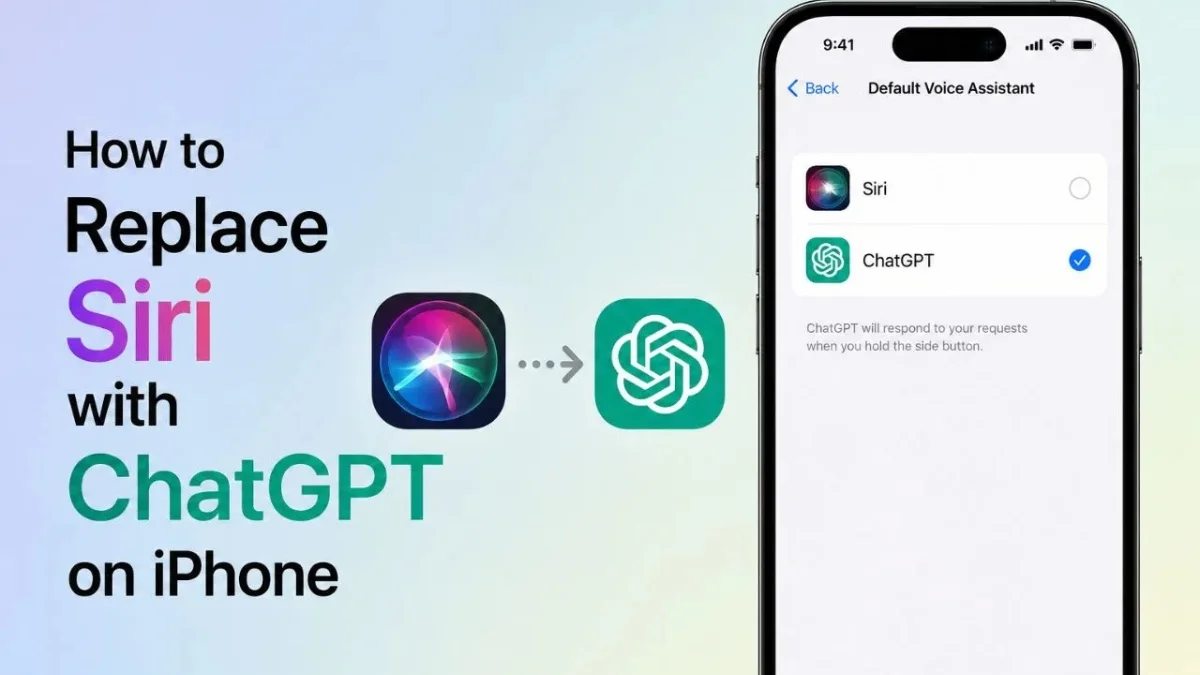
Replace Siri with ChatGPT on iPhone: If you have ever felt that Siri handles only basic tasks while you want deeper and more natural conversations, you are not alone. Many iPhone users now prefer ChatGPT for smarter answers, creative help, and more detailed conversations.
While Apple does not allow users to completely remove Siri from iPhone, there are simple ways to make ChatGPT feel like your main voice assistant for everyday use.
The good news is that setting up ChatGPT as your go-to assistant on iPhone takes only a few minutes. With iOS 18 features and the official ChatGPT app, you can quickly create shortcuts that launch ChatGPT voice mode directly, giving you a smoother AI experience whenever you need quick help.

Replace Siri with ChatGPT on iPhone
| Feature | Siri | ChatGPT on iPhone |
|---|---|---|
| Main Purpose | Device assistant | AI conversation assistant |
| Voice Interaction | Yes | Yes |
| System Controls | Yes | No |
| Wi-Fi/Bluetooth Control | Yes | No |
| Alarm and Timer Management | Yes | No |
| App Opening | Yes | Limited |
| Smart Conversations | Basic | Advanced |
| Context Memory | Limited | Strong multi-turn context |
| Writing Assistance | Basic | Excellent |
| Research Help | Limited | Detailed assistance |
| Creative Content Support | Limited | Strong |
| Voice Launch Option | Default Assistant | Via Action Button or Control Center |
| Internet-Based Responses | Basic search-based | Advanced AI-powered responses |
| Best For | Device management | Productivity, learning, conversations |
| Custom Setup Required | No | Yes |
Things You Need Before Setup
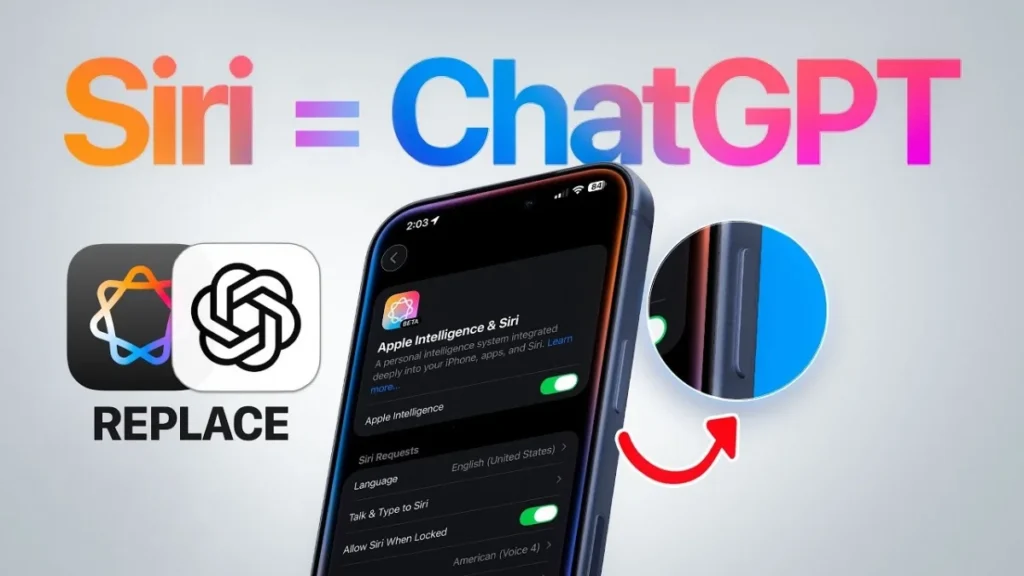
Before starting the setup process, make sure your iPhone meets a few basic requirements. First, install the official ChatGPT app from the App Store and sign in with your account so the app is ready to use properly.
Your iPhone should also be running iOS 18 or a newer version because some shortcut customization features depend on the latest system controls. It is also important to open the app once and allow microphone access for smooth voice interaction.

How to Set Up ChatGPT Using the Action Button
If you own a newer iPhone model that includes the Action Button, this method gives you one of the fastest ways to access ChatGPT voice mode. Open your iPhone Settings and locate the Action Button customization section.
From there, swipe through the available options until you find controls customization. Select the ChatGPT option and choose the voice launch feature. Once saved, simply press and hold the Action Button anytime to open ChatGPT voice instantly.
How to Add ChatGPT to Control Center
For iPhone users without the Action Button, Control Center offers another simple solution. Swipe down from the top-right corner of your screen to open Control Center and tap the plus icon to enter editing mode.

Add a shortcut control tile and assign it to the ChatGPT voice shortcut. Once this setup is complete, you can launch ChatGPT directly from Control Center anytime without opening the app manually.
Siri vs ChatGPT: What Changes After Setup?
Even after setting up ChatGPT as your preferred assistant shortcut, Siri still remains your phone’s built-in system assistant. Siri continues to control device settings like alarms, Wi-Fi, calls, and app functions because Apple limits deeper system access for third-party apps.
ChatGPT shines in a different way by offering smarter conversations, better context understanding, creative writing support, research help, and more natural interaction. This makes it a great companion for information and productivity tasks.
Why Many iPhone Users Prefer ChatGPT
ChatGPT offers a more human-like conversational experience compared to traditional voice assistants. It can understand follow-up questions better, maintain longer conversations, and provide more detailed responses instead of short generic answers.

For students, professionals, writers, and everyday users who want smarter AI assistance, ChatGPT feels much more useful for brainstorming, writing help, quick explanations, and advanced question answering.
Final Thoughts
Replacing Siri completely is not currently possible because Apple keeps certain core assistant functions locked inside iOS. However, with shortcut customization and iOS 18 features, you can make ChatGPT your primary AI companion for most conversations and information-based tasks.
For users who want a smarter assistant without changing devices, this setup offers a simple and practical solution that combines iPhone convenience with powerful AI support.

Also read:
Flipkart Sale Offers: Best 5G Smartphones Under Rs. 10000 With Massive Limited Time Discounts
Jio Airtel IPL 2026 Streaming Plans Compared: Best Recharge Packs For Cricket Fans